
录制与回放数据
目标: 录制话题(topic)、服务(service)和动作(action)上发布的数据,以便随时回放和检查。
教程级别: 初级
预计用时: 20 分钟
ros2 bag 是一个命令行工具,用于录制 ROS 2 系统中话题、服务和动作上发布的数据。
它可以将任意数量话题、服务和动作中传递的数据累积保存到数据库中。
随后你可以回放这些数据,重现测试和实验的结果。
录制话题、服务和动作也是分享你的工作、让他人复现的好方法。
ros2 bag 应该已经随 ROS 2 一起安装好了。
如果你需要安装 ROS 2,请参阅安装说明。
本教程涉及之前教程中介绍的概念,如节点、话题、服务和动作。 其中还用到了 turtlesim 功能包、Service Introspection 演示和 Action Introspection 演示。
和之前一样,每次打开新终端时都别忘了 source ROS 2。
管理话题数据
Section titled “管理话题数据”1 准备工作
Section titled “1 准备工作”你将在 turtlesim 中录制键盘输入,以便稍后保存和回放。首先,启动 /turtlesim 和 /teleop_turtle 节点。
打开一个新终端并运行:
$ ros2 run turtlesim turtlesim_node打开另一个终端并运行:
$ ros2 run turtlesim turtle_teleop_key我们再来创建一个新目录来存放录制文件,这是个好习惯:
$ mkdir bag_files$ cd bag_files注意:Windows 用户请使用
md bag_files替代mkdir bag_files。
2 选择一个话题
Section titled “2 选择一个话题”ros2 bag 可以录制话题上发布的消息数据。
要查看系统中的话题列表,打开一个新终端并运行以下命令:
$ ros2 topic list/parameter_events/rosout/turtle1/cmd_vel/turtle1/color_sensor/turtle1/pose在话题教程中,你已经了解到 /turtle_teleop 节点在 /turtle1/cmd_vel 话题上发布命令,来控制 turtlesim 中海龟的移动。
要查看 /turtle1/cmd_vel 正在发布的数据,运行以下命令:
$ ros2 topic echo /turtle1/cmd_vel起初不会显示任何内容,因为 teleop 还没有发布数据。
回到运行 teleop 的终端并选中它使其处于活动状态。
用方向键移动海龟,你会看到运行 ros2 topic echo 的终端中正在显示发布的数据。
linear: x: 2.0 y: 0.0 z: 0.0angular: x: 0.0 y: 0.0 z: 0.0---3 录制话题
Section titled “3 录制话题”3.1 录制单个话题
Section titled “3.1 录制单个话题”要录制话题上发布的数据,命令语法如下:
$ ros2 bag record --topics <topic_name>在运行此命令之前,打开一个新终端并进入之前创建的 bag_files 目录,因为 rosbag 文件会保存在运行命令时所在的工作目录中。
运行命令:
$ ros2 bag record --topics /turtle1/cmd_vel[INFO] [rosbag2_storage]: Opened database 'rosbag2_2019_10_11-05_18_45'.[INFO] [rosbag2_transport]: Listening for topics...[INFO] [rosbag2_transport]: Subscribed to topic '/turtle1/cmd_vel'[INFO] [rosbag2_transport]: All requested topics are subscribed. Stopping discovery...现在 ros2 bag 正在录制 /turtle1/cmd_vel 话题上发布的数据。
回到 teleop 终端,再次移动海龟。
移动路径并不重要,但尽量走出一个可辨识的轨迹,以便稍后回放时观察。
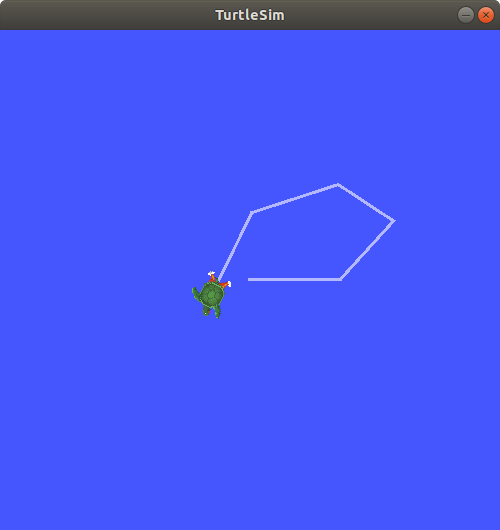
按 Ctrl-C 停止录制。
数据将保存到一个新的 bag 目录中,目录名称格式为 rosbag2_year_month_day-hour_minute_second。
该目录中包含一个 metadata.yaml 文件和对应格式的 bag 文件。
3.2 录制多个话题
Section titled “3.2 录制多个话题”你还可以同时录制多个话题,并自定义 ros2 bag 保存的 bag 目录名称。
运行以下命令:
$ ros2 bag record -o subset --topics /turtle1/cmd_vel /turtle1/pose[INFO] [rosbag2_storage]: Opened database 'subset'.[INFO] [rosbag2_transport]: Listening for topics...[INFO] [rosbag2_transport]: Subscribed to topic '/turtle1/cmd_vel'[INFO] [rosbag2_transport]: Subscribed to topic '/turtle1/pose'[INFO] [rosbag2_transport]: All requested topics are subscribed. Stopping discovery...-o 选项用于指定 bag 目录的名称。后面的字符串(本例中为 subset)就是 bag 目录的名称。
要同时录制多个话题,只需在 --topics 后面用空格分隔列出每个话题即可。
上方的命令输出确认了两个话题都在被录制。
你可以移动海龟,完成后按 Ctrl-C。
注意:你还可以使用
-a选项来录制系统中的所有话题。
3.3 将录制拆分为多个文件
Section titled “3.3 将录制拆分为多个文件”你还可以根据录制时长或文件大小,将录制内容拆分为多个文件。
-d <max_bag_duration> 选项确保每个文件在写入新文件前仅录制 <max_bag_duration> 秒;-b <max_bag_size> 选项则确保每个文件的大小不超过 <max_bag_size> 字节。
这样可以防止文件过大而难以管理,同时避免在录制中途损坏时丢失全部数据。
运行以下命令至少 15 秒,以生成三个 5 秒的 bag 文件:
$ ros2 bag record -o subset_split -d 5 --topics /turtle1/cmd_vel /turtle1/pose[INFO] [rosbag2_recorder]: Press SPACE for pausing/resuming[INFO] [rosbag2_recorder]: Listening for topics...[INFO] [rosbag2_recorder]: Event publisher thread: Starting[INFO] [rosbag2_recorder]: Recording...[INFO] [rosbag2_recorder]: Subscribed to topic '/turtle1/cmd_vel'[INFO] [rosbag2_recorder]: Subscribed to topic '/turtle1/pose'[INFO] [rosbag2_recorder]: All requested topics are subscribed. Stopping discovery...[INFO] [rosbag2_cpp]: Writing remaining messages from cache to the bag. It may take a while[INFO] [rosbag2_cpp]: Writing remaining messages from cache to the bag. It may take a while[INFO] [rosbag2_cpp]: Writing remaining messages from cache to the bag. It may take a while完成后按 Ctrl-C。
你会找到一个 subset_split 目录,其中包含如下文件:0_subset_split_YYYY_MM_DD-HH_MM_SS.mcap、1_subset_split_YYYY_MM_DD-HH_MM_SS.mcap,依此类推。
4 检查话题数据
Section titled “4 检查话题数据”你可以通过以下命令查看录制的详细信息:
$ ros2 bag info <bag_name>对 subset bag 录制运行此命令,将返回如下信息:
$ ros2 bag info subsetFiles: subset_0.mcapBag size: 228.5 KiBStorage id: mcapROS Distro: rollingDuration: 48.47sStart: Oct 11 2019 06:09:09.12 (1570799349.12)End Oct 11 2019 06:09:57.60 (1570799397.60)Messages: 3013Topic information: Topic: /turtle1/cmd_vel | Type: geometry_msgs/msg/Twist | Count: 9 | Serialization Format: cdr Topic: /turtle1/pose | Type: turtlesim_msgs/msg/Pose | Count: 3004 | Serialization Format: cdrServices: 0Service information:Actions: 0Action information:你也可以对单个文件调用 ros2 bag info,例如 subset_split/0_subset_split_YYYY_MM_DD-HH_MM_SS.mcap,它将只显示该部分录制的信息(本例中为前 5 秒)。
5 回放话题数据
Section titled “5 回放话题数据”5.1 回放单个 bag
Section titled “5.1 回放单个 bag”在回放 bag 之前,先在运行 teleop 的终端中按 Ctrl-C 停止它。 然后确保 turtlesim 窗口可见,以便观察 bag 文件的回放效果。
输入命令:
$ ros2 bag play subset[INFO] [rosbag2_player]: Set rate to 1[INFO] [rosbag2_player]: Adding keyboard callbacks.[INFO] [rosbag2_player]: Press SPACE for Pause/Resume[INFO] [rosbag2_player]: Press CURSOR_RIGHT for Play Next Message[INFO] [rosbag2_player]: Press CURSOR_UP for Increase Rate 10%[INFO] [rosbag2_player]: Press CURSOR_DOWN for Decrease Rate 10%Progress bar enabled at 3 Hz.Progress bar [?]: [R]unning, [P]aused, [B]urst, [D]elayed, [S]topped[INFO] [rosbag2_player]: Playback until timestamp: -1

====== Playback Progress ======[1751923361.427372456] Duration 0.00/48.47 [R]
你的海龟将沿着录制时输入的路径移动(虽然不是 100% 精确,因为 turtlesim 对系统计时的微小变化很敏感)。
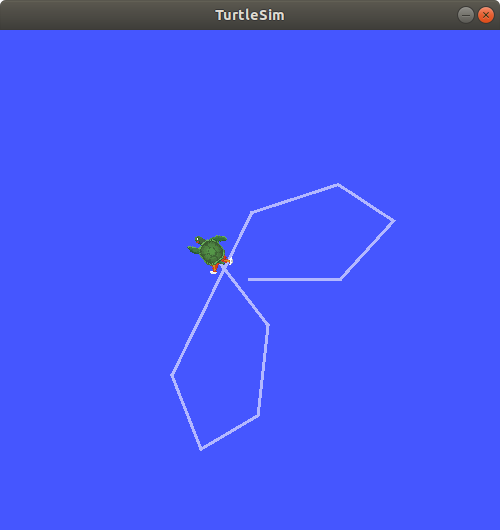
由于 subset 文件中录制了 /turtle1/pose 话题的数据,即使你没有移动,ros2 bag play 命令也会在 turtlesim 运行期间持续播放。
这是因为只要 /turtlesim 节点处于活动状态,它就会定期在 /turtle1/pose 话题上发布数据。
你可能已经注意到,在上面的 ros2 bag info 示例输出中,/turtle1/cmd_vel 话题的 Count 仅为 9,这正是我们录制时按下方向键的次数。
注意 /turtle1/pose 的 Count 值超过 3000——在我们录制期间,该话题上发布了 3000 多次数据。
要了解位置数据的发布频率,你可以运行以下命令:
$ ros2 topic hz /turtle1/pose5.2 回放多个 bag
Section titled “5.2 回放多个 bag”有时,你可能需要将录制工作分散到多个 bag 文件中,以分担录制负载。
例如,我们可以将 /turtle1/cmd_vel 和 /turtle1/pose 分别录制到各自的 bag 中。
打开两个终端。 在第一个终端中,运行以下命令:
$ ros2 bag record -o subset_cmd_vel --topics /turtle1/cmd_vel在第二个终端中,运行以下命令:
$ ros2 bag record -o subset_pose --topics /turtle1/pose像之前一样移动海龟,完成后按 Ctrl-C 结束两个录制。
要让这两个录制以正确的时序并行播放,请为每个要包含的 bag 使用 -i <bag_name> 参数调用 ros2 bag play。
在本例中,运行:
$ ros2 bag play -i subset_cmd_vel -i subset_pose这将同时播放 subset_cmd_vel 和 subset_pose 两个录制,回放过程会同步,以复现消息的原始顺序。
可选参数 --message-order {received,sent} 用于决定消息按接收时间还是发布时间排序(默认为 received)。
该参数同样适用于单个 bag 的回放。
管理服务数据
Section titled “管理服务数据”1 准备工作
Section titled “1 准备工作”你将录制 introspection_client 和 introspection_service 之间的服务数据,稍后再查看和回放这些数据。
要录制服务客户端与服务端之间的服务数据,必须在节点上启用 Service Introspection。
下面启动 introspection_client 和 introspection_service 节点,并启用 Service Introspection。
更多详细信息请参阅 Service Introspection 演示。
打开一个新终端,运行 introspection_service,并启用 Service Introspection:
$ ros2 run demo_nodes_cpp introspection_service --ros-args -p service_configure_introspection:=contents打开另一个终端,运行 introspection_client,并启用 Service Introspection:
$ ros2 run demo_nodes_cpp introspection_client --ros-args -p client_configure_introspection:=contents2 检查服务可用性
Section titled “2 检查服务可用性”ros2 bag 只能录制可用服务的数据。
要查看系统中的服务列表,打开一个新终端并运行以下命令:
$ ros2 service list/add_two_ints/introspection_client/describe_parameters/introspection_client/get_parameter_types/introspection_client/get_parameters/introspection_client/get_type_description/introspection_client/list_parameters/introspection_client/set_parameters/introspection_client/set_parameters_atomically/introspection_service/describe_parameters/introspection_service/get_parameter_types/introspection_service/get_parameters/introspection_service/get_type_description/introspection_service/list_parameters/introspection_service/set_parameters/introspection_service/set_parameters_atomically要检查客户端和服务端是否已启用 Service Introspection,运行以下命令:
$ ros2 service echo --flow-style /add_two_intsinfo: event_type: REQUEST_SENT stamp: sec: 1713995389 nanosec: 386809259 client_gid: [1, 15, 96, 219, 162, 1, 108, 201, 0, 0, 0, 0, 0, 0, 21, 3] sequence_number: 133request: [{a: 2, b: 3}]response: []---你应该能看到服务通信。
3 录制服务
Section titled “3 录制服务”录制服务数据时,支持以下选项。 服务数据可以与话题数据同时录制。
录制特定服务:
$ ros2 bag record --service <service_names>录制所有服务:
$ ros2 bag record --all-services运行命令:
$ ros2 bag record --service /add_two_ints[INFO] [1713995957.643573503] [rosbag2_recorder]: Press SPACE for pausing/resuming[INFO] [1713995957.662067587] [rosbag2_recorder]: Event publisher thread: Starting[INFO] [1713995957.662067614] [rosbag2_recorder]: Listening for topics...[INFO] [1713995957.666048323] [rosbag2_recorder]: Subscribed to topic '/add_two_ints/_service_event'[INFO] [1713995957.666092458] [rosbag2_recorder]: Recording...现在 ros2 bag 正在录制 /add_two_ints 服务上发布的通信数据。
要停止录制,在终端中按 Ctrl-C。
数据将保存到一个新的 bag 目录中,目录名称格式为 rosbag2_year_month_day-hour_minute_second。
该目录中包含一个 metadata.yaml 文件和对应格式的 bag 文件。
4 检查服务数据
Section titled “4 检查服务数据”你可以通过以下命令查看录制的详细信息:
$ ros2 bag info <bag_file_name>Files: rosbag2_2024_04_24-14_59_17_0.mcapBag size: 15.1 KiBStorage id: mcapROS Distro: rollingDuration: 9.211sStart: Apr 24 2024 14:59:17.676 (1713995957.676)End: Apr 24 2024 14:59:26.888 (1713995966.888)Messages: 0Topic information:Service: 1Service information: Service: /add_two_ints | Type: example_interfaces/srv/AddTwoInts | Event Count: 78 | Serialization Format: cdr5 回放服务数据
Section titled “5 回放服务数据”在回放 bag 文件之前,先在运行 introspection_client 的终端中按 Ctrl-C 停止它。
introspection_client 停止后,introspection_service 也会停止打印结果,因为不再有新的请求传入。
从 bag 文件回放服务数据后,将重新开始向 introspection_service 发送请求。
输入命令:
$ ros2 bag play --publish-service-requests <bag_file_name>[INFO] [1713997477.870856190] [rosbag2_player]: Set rate to 1[INFO] [1713997477.877417477] [rosbag2_player]: Adding keyboard callbacks.[INFO] [1713997477.877442404] [rosbag2_player]: Press SPACE for Pause/Resume[INFO] [1713997477.877447855] [rosbag2_player]: Press CURSOR_RIGHT for Play Next Message[INFO] [1713997477.877452655] [rosbag2_player]: Press CURSOR_UP for Increase Rate 10%[INFO] [1713997477.877456954] [rosbag2_player]: Press CURSOR_DOWN for Decrease Rate 10%[INFO] [1713997477.877573647] [rosbag2_player]: Playback until timestamp: -1你的 introspection_service 终端将再次开始打印以下服务消息:
[INFO] [1713997478.090466075] [introspection_service]: Incoming requesta: 2 b: 3这是因为 ros2 bag play 将 bag 文件中的服务请求数据发送到了 /add_two_ints 服务。
我们还可以在 ros2 bag play 回放时内省服务通信,以验证 introspection_service 的行为。
在 ros2 bag play 之前运行此命令,以便查看 introspection_service 的行为:
$ ros2 service echo --flow-style /add_two_ints你可以看到来自 bag 文件的服务请求以及来自 introspection_service 的服务响应。
info: event_type: REQUEST_RECEIVED stamp: sec: 1713998176 nanosec: 372700698 client_gid: [1, 15, 96, 219, 80, 2, 158, 123, 0, 0, 0, 0, 0, 0, 20, 4] sequence_number: 1request: [{a: 2, b: 3}]response: []---info: event_type: RESPONSE_SENT stamp: sec: 1713998176 nanosec: 373016882 client_gid: [1, 15, 96, 219, 80, 2, 158, 123, 0, 0, 0, 0, 0, 0, 20, 4] sequence_number: 1request: []response: [{sum: 5}]管理动作数据
Section titled “管理动作数据”1 准备工作
Section titled “1 准备工作”你将录制 fibonacci_action_client 和 fibonacci_action_server 之间的动作数据,稍后再查看和回放这些数据。
要录制动作客户端与服务端之间的动作数据,必须在节点上启用 Action Introspection。
下面启动 fibonacci_action_client 和 fibonacci_action_server 节点,并启用 Action Introspection。
更多详细信息请参阅 Action Introspection 演示。
打开一个新终端,运行 fibonacci_action_server,并启用 Action Introspection:
$ ros2 run action_tutorials_py fibonacci_action_server --ros-args -p action_server_configure_introspection:=contents打开另一个终端,运行 fibonacci_action_client,并启用 Action Introspection:
$ ros2 run action_tutorials_cpp fibonacci_action_client --ros-args -p action_client_configure_introspection:=contents2 检查动作可用性
Section titled “2 检查动作可用性”ros2 bag 只能录制可用动作的数据。
要查看系统中的动作列表,打开一个新终端并运行以下命令:
$ ros2 action list/fibonacci要检查动作是否已启用 Action Introspection,运行以下命令:
$ ros2 action echo --flow-style /fibonacciinterface: GOAL_SERVICEinfo: event_type: REQUEST_SENT stamp: sec: 1744917904 nanosec: 760683446 client_gid: [1, 15, 165, 231, 234, 109, 65, 202, 0, 0, 0, 0, 0, 0, 19, 4] sequence_number: 1request: [{goal_id: {uuid: [81, 55, 121, 145, 81, 66, 209, 93, 214, 113, 255, 100, 120, 6, 102, 83]}, goal: {order: 10}}]response: []---...3 录制动作
Section titled “3 录制动作”录制动作数据时,支持以下选项。 动作数据可以与话题和服务同时录制。
录制特定动作:
$ ros2 bag record --action <action_names>录制所有动作:
$ ros2 bag record --all-actions运行命令:
$ ros2 bag record --action /fibonacci[INFO] [1744953225.214114862] [rosbag2_recorder]: Press SPACE for pausing/resuming[INFO] [1744953225.218369761] [rosbag2_recorder]: Listening for topics...[INFO] [1744953225.218386223] [rosbag2_recorder]: Event publisher thread: Starting[INFO] [1744953225.218580294] [rosbag2_recorder]: Recording...[INFO] [1744953225.725417634] [rosbag2_recorder]: Subscribed to topic '/fibonacci/_action/cancel_goal/_service_event'[INFO] [1744953225.727901848] [rosbag2_recorder]: Subscribed to topic '/fibonacci/_action/feedback'[INFO] [1744953225.729655213] [rosbag2_recorder]: Subscribed to topic '/fibonacci/_action/get_result/_service_event'[INFO] [1744953225.731315612] [rosbag2_recorder]: Subscribed to topic '/fibonacci/_action/send_goal/_service_event'[INFO] [1744953225.735061252] [rosbag2_recorder]: Subscribed to topic '/fibonacci/_action/status'...现在 ros2 bag 正在录制 /fibonacci 动作的数据:goal、result 和 feedback。
要停止录制,在终端中按 Ctrl-C。
数据将保存到一个新的 bag 目录中,目录名称格式为 rosbag2_year_month_day-hour_minute_second。
该目录中包含一个 metadata.yaml 文件和对应格式的 bag 文件。
4 检查动作数据
Section titled “4 检查动作数据”你可以通过以下命令查看录制的详细信息:
$ ros2 bag info <bag_file_name>Files: rosbag2_2025_04_17-22_20_40_0.mcapBag size: 20.7 KiBStorage id: mcapROS Distro: rollingDuration: 9.019568080sStart: Apr 17 2025 22:20:47.263125070 (1744953647.263125070)End: Apr 17 2025 22:20:56.282693150 (1744953656.282693150)Messages: 0Topic information:Services: 0Service information:Actions: 1Action information: Action: /fibonacci | Type: example_interfaces/action/Fibonacci | Topics: 2 | Service: 3 | Serialization Format: cdr Topic: feedback | Count: 9 Topic: status | Count: 3 Service: send_goal | Event Count: 4 Service: cancel_goal | Event Count: 0 Service: get_result | Event Count: 45 回放动作数据
Section titled “5 回放动作数据”在回放 bag 文件之前,先在运行 fibonacci_action_client 的终端中按 Ctrl-C 停止它。
fibonacci_action_client 停止后,fibonacci_action_server 也会停止打印结果,因为不再有新的请求传入。
从 bag 文件回放动作数据后,将重新开始向 fibonacci_action_server 发送请求。
输入命令:
$ ros2 bag play --send-actions-as-client <bag_file_name>[INFO] [1744953720.691068674] [rosbag2_player]: Set rate to 1[INFO] [1744953720.702365209] [rosbag2_player]: Adding keyboard callbacks.[INFO] [1744953720.702409447] [rosbag2_player]: Press SPACE for Pause/Resume[INFO] [1744953720.702423063] [rosbag2_player]: Press CURSOR_RIGHT for Play Next Message[INFO] [1744953720.702431404] [rosbag2_player]: Press CURSOR_UP for Increase Rate 10%[INFO] [1744953720.702437677] [rosbag2_player]: Press CURSOR_DOWN for Decrease Rate 10%Progress bar enabled at 3 Hz.Progress bar [?]: [R]unning, [P]aused, [B]urst, [D]elayed, [S]topped[INFO] [1744953720.702577680] [rosbag2_player]: Playback until timestamp: -1

====== Playback Progress ======[1744953656.281683207] Duration 9.02/9.02 [R]
你的 fibonacci_action_server 终端将再次开始打印以下消息:
[INFO] [1744953720.815577088] [fibonacci_action_server]: Executing goal...[INFO] [1744953720.815927050] [fibonacci_action_server]: Feedback: array('i', [0, 1, 1])[INFO] [1744953721.816509658] [fibonacci_action_server]: Feedback: array('i', [0, 1, 1, 2])[INFO] [1744953722.817220270] [fibonacci_action_server]: Feedback: array('i', [0, 1, 1, 2, 3])[INFO] [1744953723.817876426] [fibonacci_action_server]: Feedback: array('i', [0, 1, 1, 2, 3, 5])[INFO] [1744953724.818498515] [fibonacci_action_server]: Feedback: array('i', [0, 1, 1, 2, 3, 5, 8])[INFO] [1744953725.819182228] [fibonacci_action_server]: Feedback: array('i', [0, 1, 1, 2, 3, 5, 8, 13])[INFO] [1744953726.820032562] [fibonacci_action_server]: Feedback: array('i', [0, 1, 1, 2, 3, 5, 8, 13, 21])[INFO] [1744953727.820738690] [fibonacci_action_server]: Feedback: array('i', [0, 1, 1, 2, 3, 5, 8, 13, 21, 34])[INFO] [1744953728.821449308] [fibonacci_action_server]: Feedback: array('i', [0, 1, 1, 2, 3, 5, 8, 13, 21, 34, 55])这是因为 ros2 bag play 将 bag 文件中的动作 goal 请求数据发送到了 /fibonacci 动作。
我们还可以在 ros2 bag play 回放时内省动作通信,以验证 fibonacci_action_server 的行为。
在 ros2 bag play 之前运行此命令,以便查看 fibonacci_action_server 的行为。
你可以看到来自 bag 文件的动作 goal 请求以及来自 fibonacci_action_server 的响应:
$ ros2 action echo --flow-style /fibonacciinterface: STATUS_TOPICstatus_list: [{goal_info: {goal_id: {uuid: [34, 116, 225, 217, 48, 121, 146, 36, 240, 98, 99, 134, 55, 227, 184, 72]}, stamp: {sec: 1744953720, nanosec: 804984321}}, status: 4}]---interface: GOAL_SERVICEinfo: event_type: REQUEST_RECEIVED stamp: sec: 1744953927 nanosec: 957359210 client_gid: [1, 15, 165, 231, 190, 254, 1, 50, 0, 0, 0, 0, 0, 0, 19, 4] sequence_number: 1request: [{goal_id: {uuid: [191, 200, 153, 122, 221, 251, 152, 172, 60, 69, 94, 20, 212, 160, 40, 12]}, goal: {order: 10}}]response: []---interface: GOAL_SERVICEinfo: event_type: RESPONSE_SENT stamp: sec: 1744953927 nanosec: 957726145 client_gid: [1, 15, 165, 231, 190, 254, 1, 50, 0, 0, 0, 0, 0, 0, 19, 4] sequence_number: 1request: []response: [{accepted: true, stamp: {sec: 1744953927, nanosec: 957615866}}]---interface: STATUS_TOPICstatus_list: [{goal_info: {goal_id: {uuid: [191, 200, 153, 122, 221, 251, 152, 172, 60, 69, 94, 20, 212, 160, 40, 12]}, stamp: {sec: 1744953927, nanosec: 957663383}}, status: 2}]---interface: FEEDBACK_TOPICgoal_id: uuid: [191, 200, 153, 122, 221, 251, 152, 172, 60, 69, 94, 20, 212, 160, 40, 12]feedback: sequence: [0, 1, 1]---...你可以使用 ros2 bag 命令录制 ROS 2 系统中通过话题、服务和动作传递的数据。
无论是与他人分享你的工作,还是内省自己的实验,它都是一个非常实用的工具。
你已经完成了”初级:CLI 工具”教程! 下一步是学习”初级:客户端库”教程,从创建工作空间开始。
ros2 bag 的更详细说明可在这里的 README 中找到。
关于服务录制和回放的更多信息,可在 这里 的设计文档中找到。
关于动作录制和回放的更多信息,可在 这里 的设计文档中找到。
关于 QoS 兼容性和 ros2 bag 的更多信息,请参阅 Overriding QoS Policies For Recording And Playback。