
理解 ROS 2 话题
目标: 使用 rqt_graph 和命令行工具查看 ROS 2 话题。
教程级别: 初级
预计用时: 20 分钟
ROS 2 将复杂系统分解为多个模块化的节点。话题(topic)是 ROS graph 的重要组成部分,充当节点之间交换消息的总线。
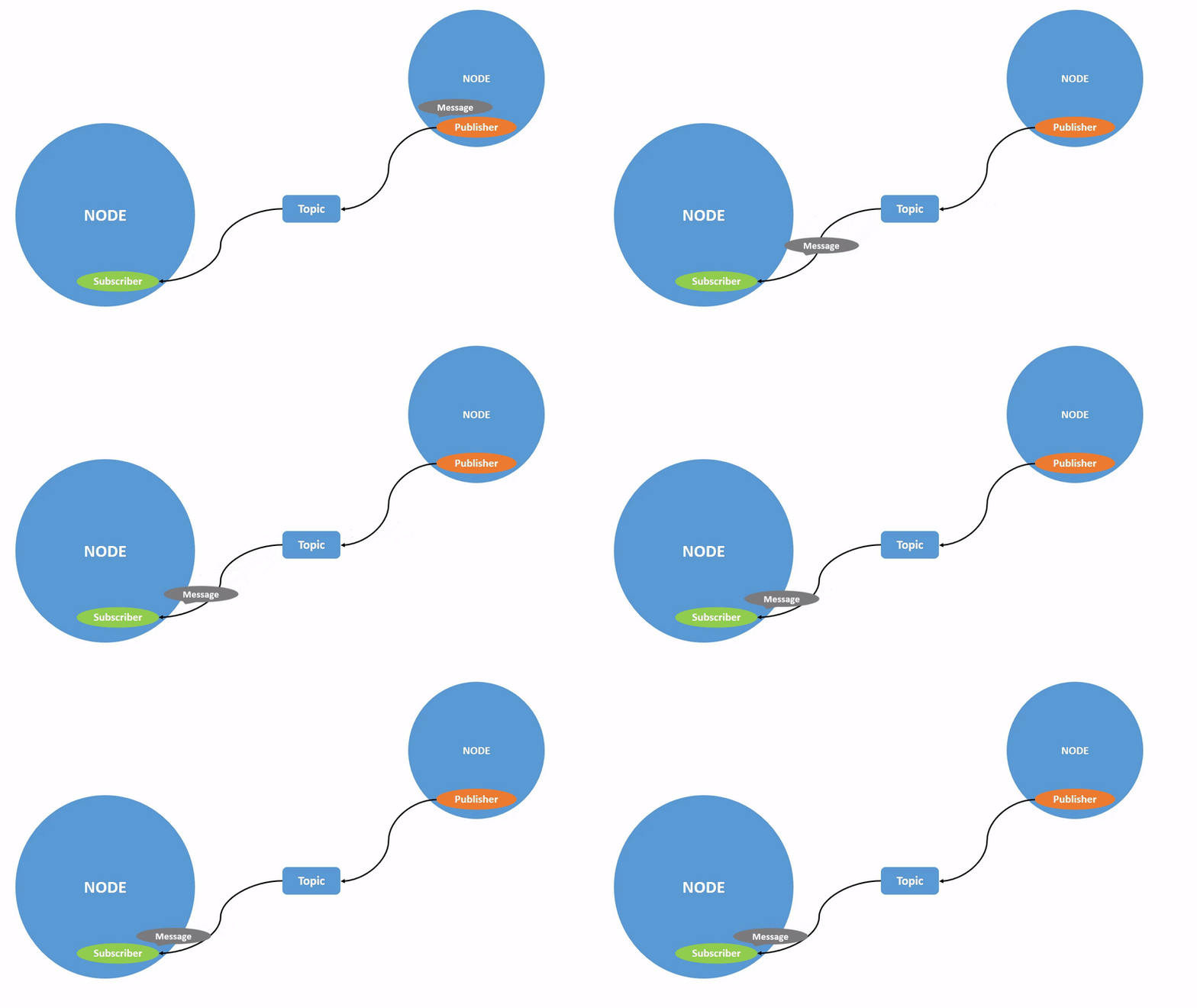
一个节点可以向任意数量的话题发布数据,同时也可以订阅任意数量的话题。
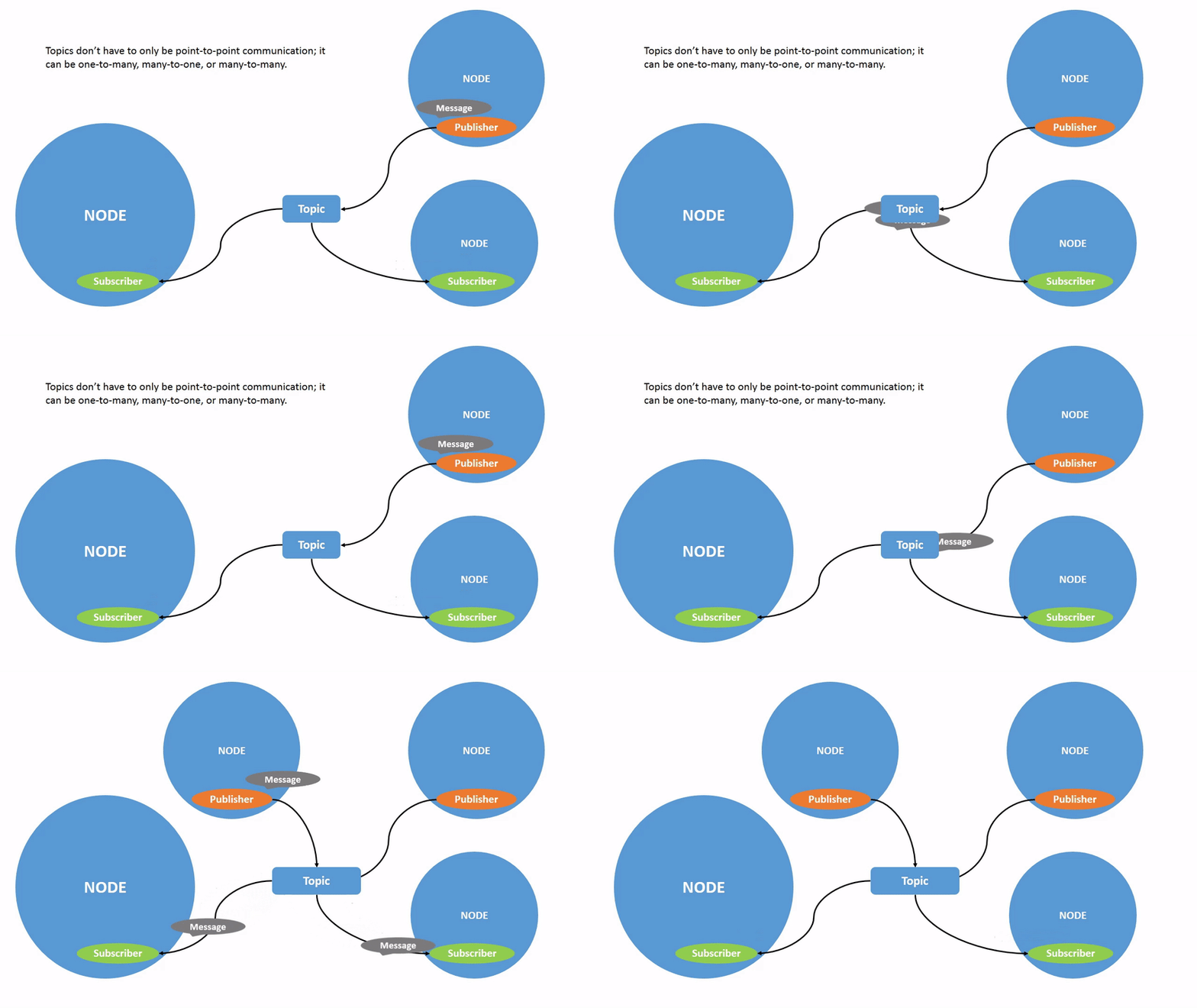
话题是节点之间、乃至整个系统不同部分之间传输数据的主要方式。
上一篇教程介绍了有关节点的背景知识,本教程将在此基础上展开。
与往常一样,每次打开新终端时不要忘记 source ROS 2。
到目前为止,你应该已经熟悉如何启动 turtlesim 了。
打开一个新终端并运行:
$ ros2 run turtlesim turtlesim_node打开另一个终端并运行:
$ ros2 run turtlesim turtle_teleop_key回顾上一篇教程,默认情况下这些节点的名称分别是 /turtlesim 和 /teleop_turtle。
2 rqt_graph
Section titled “2 rqt_graph”在本教程中,我们将使用 rqt_graph 可视化不断变化的节点和话题,以及它们之间的连接关系。
turtlesim 教程中介绍了如何安装 rqt 及其所有插件,包括 rqt_graph。
要运行 rqt_graph,打开一个新终端并输入命令:
$ ros2 run rqt_graph rqt_graph你也可以通过打开 rqt 然后选择 Plugins > Introspection > Node Graph 来打开 rqt_graph。
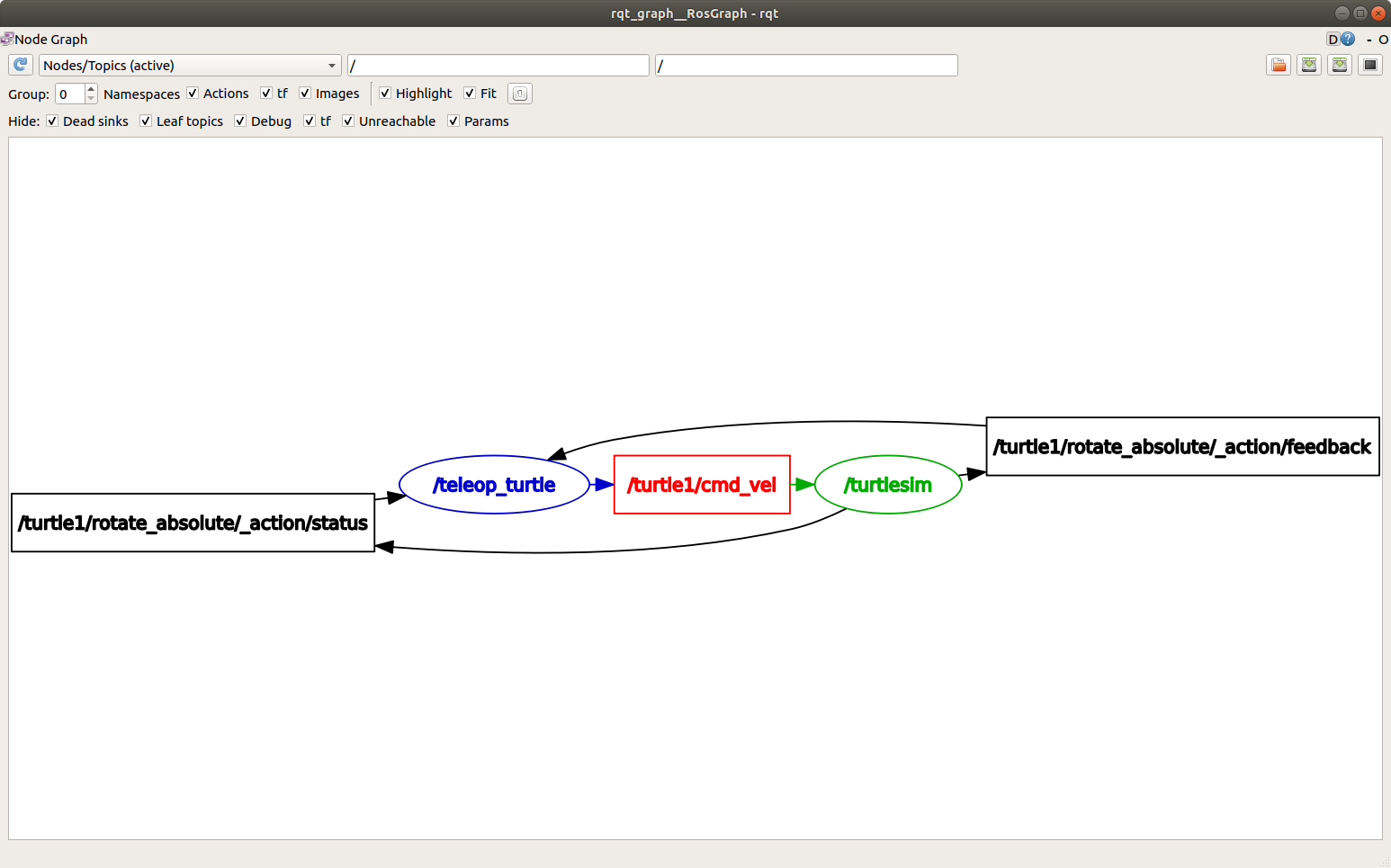
你应该能看到上述节点和话题,以及图中外围的两个动作(暂且忽略它们)。将鼠标悬停在中心的话题上,会看到如上图所示的高亮效果。
该图展示了 /turtlesim 节点和 /teleop_turtle 节点如何通过一个话题相互通信。/teleop_turtle 节点向 /turtle1/cmd_vel 话题发布数据(即你输入的移动乌龟的按键),而 /turtlesim 节点订阅该话题来接收数据。
当检查有许多节点和话题以多种不同方式连接的复杂系统时,rqt_graph 的高亮功能非常有用。
rqt_graph 是图形化查看工具。接下来看看用于查看话题的命令行工具。
3 ros2 topic list
Section titled “3 ros2 topic list”在新终端中运行 ros2 topic list 命令,将返回系统中当前所有活跃的话题:
$ ros2 topic list/parameter_events/rosout/turtle1/cmd_vel/turtle1/color_sensor/turtle1/poseros2 topic list -t 返回的话题列表相同,但会在括号中附加话题类型:
$ ros2 topic list -t/parameter_events [rcl_interfaces/msg/ParameterEvent]/rosout [rcl_interfaces/msg/Log]/turtle1/cmd_vel [geometry_msgs/msg/Twist]/turtle1/color_sensor [turtlesim_msgs/msg/Color]/turtle1/pose [turtlesim_msgs/msg/pose]这些属性(尤其是类型)让节点能够确认彼此通过话题传输的是同一类信息。
如果你想知道这些话题在 rqt_graph 中的位置,可以取消勾选 Hide: 下的所有复选框。
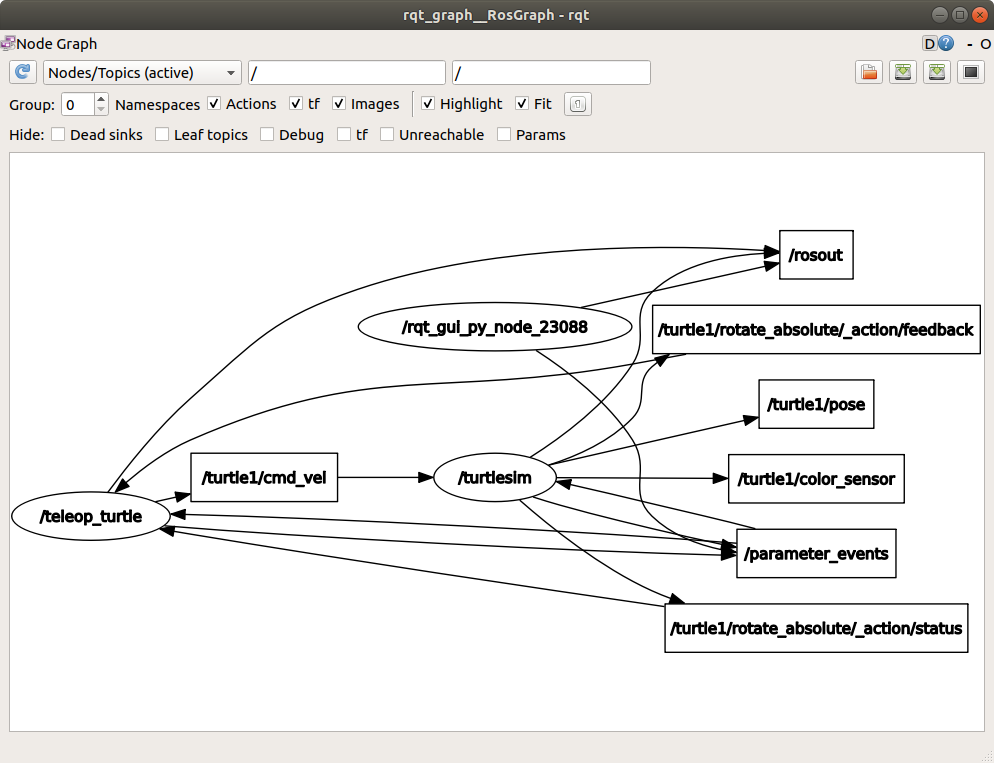
不过现在请保持这些选项勾选,以免界面过于杂乱。
4 ros2 topic echo
Section titled “4 ros2 topic echo”要查看某个话题上正在发布的数据,请使用:
$ ros2 topic echo <topic_name>既然我们知道 /teleop_turtle 通过 /turtle1/cmd_vel 话题向 /turtlesim 发布数据,就用 echo 来查看该话题:
$ ros2 topic echo /turtle1/cmd_vel起初这个命令不会返回任何数据,因为它在等待 /teleop_turtle 发布内容。
回到运行 turtle_teleop_key 的终端,用方向键移动乌龟。同时观察运行 echo 的终端,你会看到每次移动时发布的速度数据:
linear: x: 2.0 y: 0.0 z: 0.0angular: x: 0.0 y: 0.0 z: 0.0 ---现在回到 rqt_graph 并取消勾选 Debug 复选框。
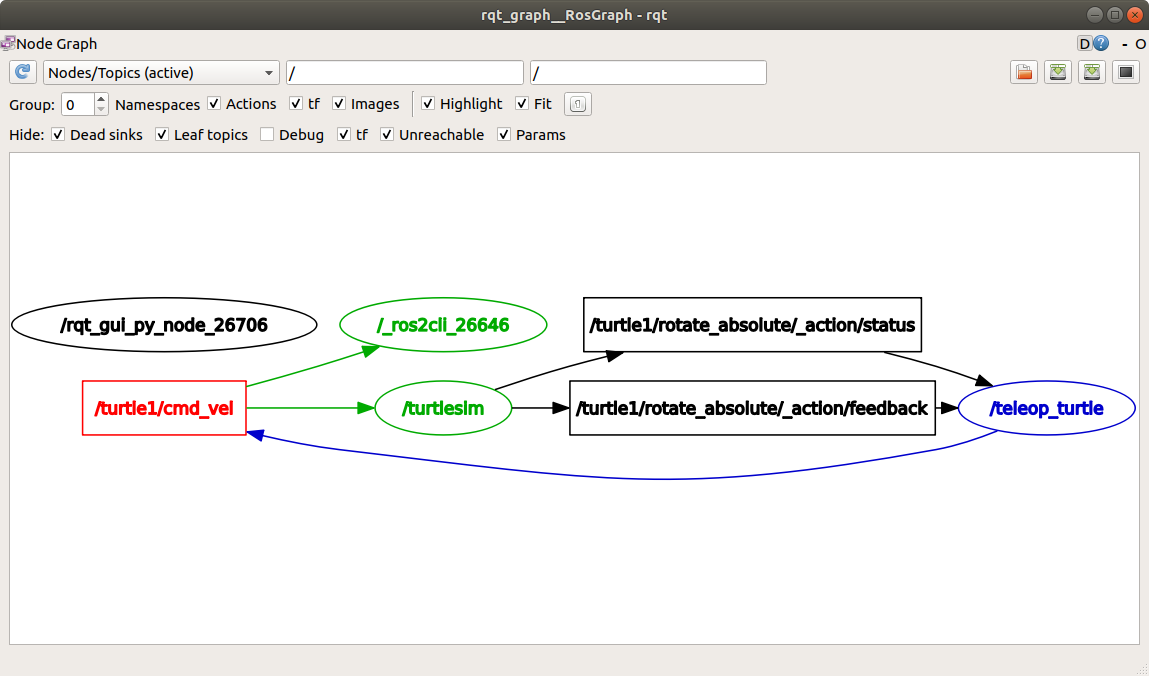
/_ros2cli_26646 是刚才运行的 echo 命令创建的节点(数字可能不同)。现在你可以看到发布者通过 cmd_vel 话题发布数据,而有两个订阅者订阅了它。
5 ros2 topic info
Section titled “5 ros2 topic info”话题的通信不局限于一对一,也可以是一对多、多对一甚至多对多。
另一种查看方式是运行:
$ ros2 topic info /turtle1/cmd_velType: geometry_msgs/msg/TwistPublisher count: 1Subscription count: 25.1 ros2 topic info —verbose
Section titled “5.1 ros2 topic info —verbose”要获取话题更详细的信息,可以使用 --verbose(或 -v)选项:
$ ros2 topic info /turtle1/cmd_vel --verbose这将返回额外的详细信息,包括:
- 发布者和订阅者的节点名称与命名空间
- 话题类型
- QoS profile
Type: geometry_msgs/msg/Twist
Publisher count: 1
Node name: teleop_turtleNode namespace: /Topic type: geometry_msgs/msg/TwistTopic type hash: RIHS01_9c45bf16fe0983d80e3cfe750d6835843d265a9a6c46bd2e609fcddde6fb8d2aEndpoint type: PUBLISHERGID: 24.ba.3e.e7.c1.51.bb.46.21.41.de.36.1b.14.73.5eQoS profile:  Reliability: RELIABLE  History (Depth): KEEP_LAST (7)  Durability: VOLATILE  Lifespan: Infinite  Deadline: Infinite  Liveliness: AUTOMATIC  Liveliness lease duration: Infinite
Subscription count: 2
Node name: _ros2cli_300492Node namespace: /Topic type: geometry_msgs/msg/TwistTopic type hash: RIHS01_9c45bf16fe0983d80e3cfe750d6835843d265a9a6c46bd2e609fcddde6fb8d2aEndpoint type: SUBSCRIPTIONGID: cc.4d.98.79.29.91.fe.25.8a.0a.c9.03.db.1a.ec.81QoS profile:  Reliability: RELIABLE  History (Depth): KEEP_LAST (5)  Durability: VOLATILE  Lifespan: Infinite  Deadline: Infinite  Liveliness: AUTOMATIC  Liveliness lease duration: Infinite
Node name: turtlesimNode namespace: /Topic type: geometry_msgs/msg/TwistTopic type hash: RIHS01_9c45bf16fe0983d80e3cfe750d6835843d265a9a6c46bd2e609fcddde6fb8d2aEndpoint type: SUBSCRIPTIONGID: 9c.33.59.38.b2.f2.42.47.69.1b.7f.0e.5e.1d.86.f5QoS profile:  Reliability: RELIABLE  History (Depth): KEEP_LAST (7)  Durability: VOLATILE  Lifespan: Infinite  Deadline: Infinite  Liveliness: AUTOMATIC  Liveliness lease duration: Infinite
6 ros2 interface show
Section titled “6 ros2 interface show”节点通过话题发送消息。发布者和订阅者必须发送和接收相同类型的消息,才能正常通信。
之前运行 ros2 topic list -t 看到的话题类型,就告诉我们每个话题使用的消息类型。回顾一下,cmd_vel 话题的类型是:
geometry_msgs/msg/Twist这意味着在 geometry_msgs 包中有一个名为 Twist 的消息。
现在我们可以对该类型运行 ros2 interface show <msg_type> 来了解其详细信息,即消息所包含的数据结构。
$ ros2 interface show geometry_msgs/msg/Twist将返回:
# This expresses velocity in free space broken into its linear and angular parts. Vector3 linear float64 x float64 y float64 z Vector3 angular float64 x float64 y float64 z这说明 /turtlesim 节点期望接收一个包含两个向量(linear 和 angular)、各含三个元素的消息。回想一下我们用 echo 命令看到的 /teleop_turtle 传递给 /turtlesim 的数据,其结构与此完全相同:
linear: x: 2.0 y: 0.0 z: 0.0angular: x: 0.0 y: 0.0 z: 0.0 ---7 ros2 topic pub
Section titled “7 ros2 topic pub”现在你已经了解了消息的结构,可以用以下命令直接从命令行向话题发布数据:
$ ros2 topic pub <topic_name> <msg_type> '<args>''<args>' 参数是你要传递给话题的实际数据,其结构就是上一节中看到的内容。
pub 命令主要有以下四种用法。不过,下面 c. 和 d. 中描述的自动补全功能在 Windows 上不受支持。
a. 发布字典字符串:
要向话题发布数据,需要以 YAML 字符串的形式传递数据。
$ ros2 topic pub /turtle1/cmd_vel geometry_msgs/msg/Twist "{linear: {x: 2.0, y: 0.0, z: 0.0}, angular: {x: 0.0, y: 0.0, z: 1.8}}"不过,你不需要指定整个消息;如果只想改变线速度或角速度,只需指定要修改的值即可。
例如,如果要将线速度改为 2.0 并保持角速度为 1.8,可以这样操作:
$ ros2 topic pub /turtle1/cmd_vel geometry_msgs/msg/Twist "{linear: {x: 2.0}, angular: {z: 1.8}}"b. 发布空消息:
$ ros2 topic pub /turtle1/cmd_vel geometry_msgs/msg/Twist这将以 1 Hz 的频率发布该消息类型的默认值。这种情况下,等同于以下命令:
$ ros2 topic pub /turtle1/cmd_vel geometry_msgs/msg/Twist "{linear: {x: 0.0, y: 0.0, z: 0.0}, angular: {x: 0.0, y: 0.0, z: 0.0}}" --rate 1c. 使用自动补全:
你可以通过以下方式触发终端的自动补全功能:
$ ros2 topic pub /turtle1/cmd_vel geometry_msgs/msg/Twist <TAB>--keep-alive--max-wait-time-secs--node-name--once--print--qos-depth--qos-durability--qos-history--qos-liveliness--qos-liveliness-lease-duration-seconds--qos-profile--qos-reliability--rate--spin-time--stdin--times--use-sim-time--wait-matching-subscriptions--yaml-file-1-n-p-r-s-t-w\'linear:\^J\ \ x:\ 0.0\^J\ \ y:\ 0.0\^J\ \ z:\ 0.0\^Jangular:\^J\ \ x:\ 0.0\^J\ \ y:\ 0.0\^J\ \ z:\ 0.0\^J\'所有选项都可以在输入前几个字符后按 tab 键自动补全。但话题消息的原型只有在输入 \'<TAB> 之后才会自动补全。
这是因为终端不会将单引号识别为自动补全字符串的一部分。因此,需要用 \' 转义才能将其识别为字符串的一部分。
最终自动补全的字符串如下所示:
ros2 topic pub /turtle1/cmd_vel geometry_msgs/msg/Twist 'linear: x: 0.0 y: 0.0 z: 0.0angular: x: 0.0 y: 0.0 z: 0.0'这个字符串可以编辑,你可以根据需要修改消息中各字段的值。
d. 使用原始自动补全字符串:
如上所述,geometry_msgs/msg/Twist 的自动补全字符串如下所示:
\'linear:\^J\ \ x:\ 0.0\^J\ \ y:\ 0.0\^J\ \ z:\ 0.0\^Jangular:\^J\ \ x:\ 0.0\^J\ \ y:\ 0.0\^J\ \ z:\ 0.0\^J\'这可以直接用来替代命令行中的 YAML 字符串。
$ ros2 topic pub /turtle1/cmd_vel geometry_msgs/msg/Twist \'linear:\^J\ \ x:\ 0.0\^J\ \ y:\ 0.0\^J\ \ z:\ 0.0\^Jangular:\^J\ \ x:\ 0.0\^J\ \ y:\ 0.0\^J\ \ z:\ 0.0\^J\'乌龟(以及它所模拟的真实机器人)需要持续的命令流才能保持运动。因此,要让乌龟移动并持续移动,可以使用以下字典字符串:
$ ros2 topic pub /turtle1/cmd_vel geometry_msgs/msg/Twist "{linear: {x: 2.0, y: 0.0, z: 0.0}, angular: {x: 0.0, y: 0.0, z: 1.8}}"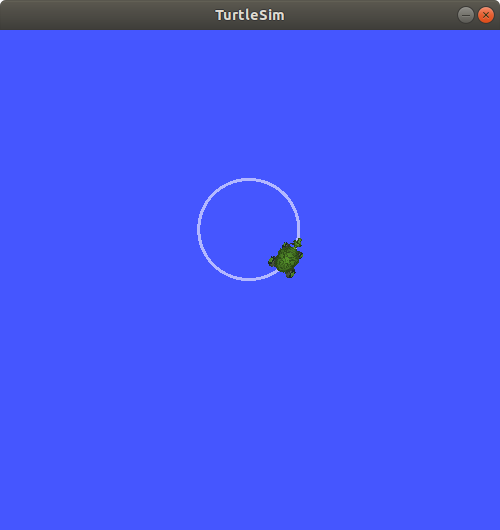
有时你可能只想向话题发布一次数据(而非持续发布)。要只发布一次命令,请添加 --once 选项。
$ ros2 topic pub --once -w 2 /turtle1/cmd_vel geometry_msgs/msg/Twist "{linear: {x: 2.0, y: 0.0, z: 0.0}, angular: {x: 0.0, y: 0.0, z: 1.8}}"--once 是一个可选参数,意思是”发布一条消息然后退出”。
-w 2 是一个可选参数,意思是”等待两个匹配的订阅者”。这里必须设置,因为 turtlesim 和 topic echo 都订阅了这个话题。
你会在终端中看到以下输出:
Waiting for at least 2 matching subscription(s)...publisher: beginning looppublishing #1: geometry_msgs.msg.Twist(linear=geometry_msgs.msg.Vector3(x=2.0, y=0.0, z=0.0), angular=geometry_msgs.msg.Vector3(x=0.0, y=0.0, z=1.8))你会看到乌龟这样移动:
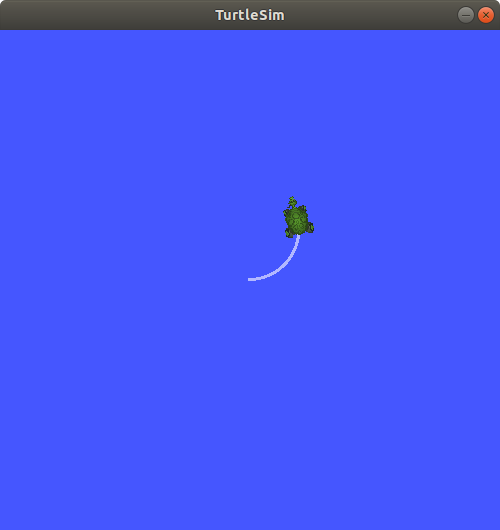
你可以刷新 rqt_graph,以图形方式查看发生了什么。你会看到 ros2 topic pub ... 节点(/_ros2cli_30358)正在通过 /turtle1/cmd_vel 话题发布数据,现在该数据同时被 ros2 topic echo ... 节点(/_ros2cli_26646)和 /turtlesim 节点接收。
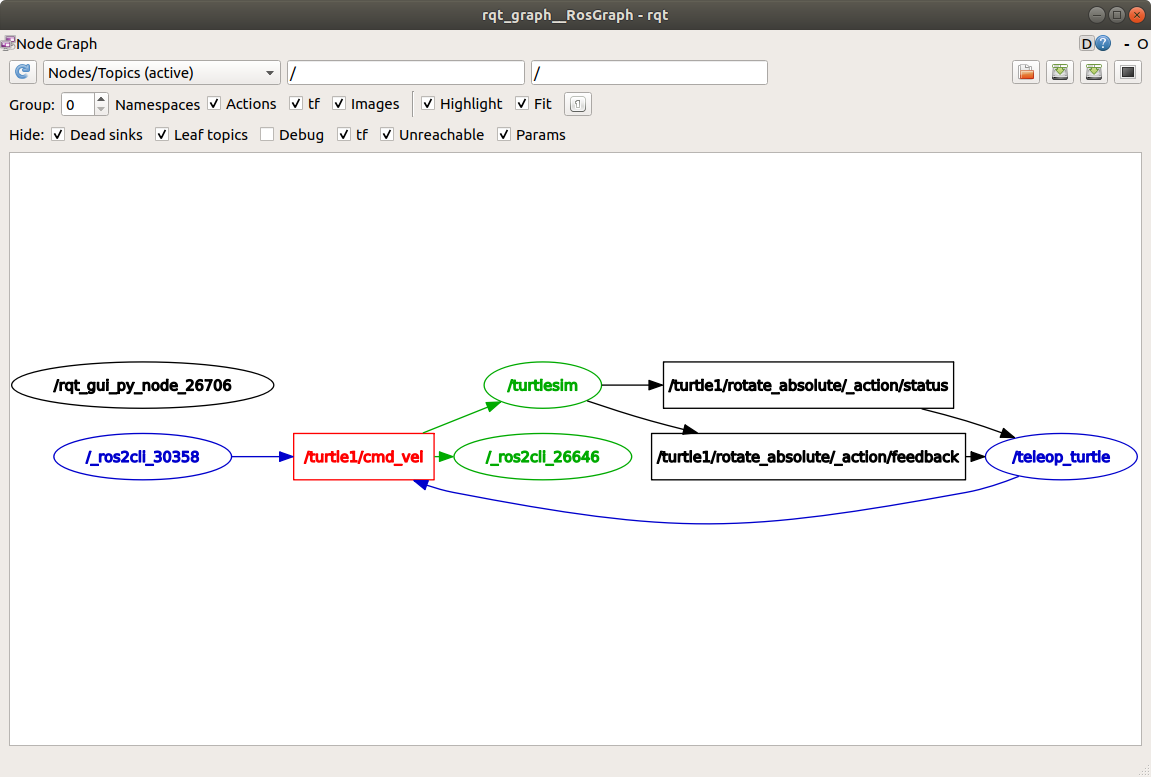
最后,可以在 pose 话题上运行 echo 并重新查看 rqt_graph:
$ ros2 topic echo /turtle1/pose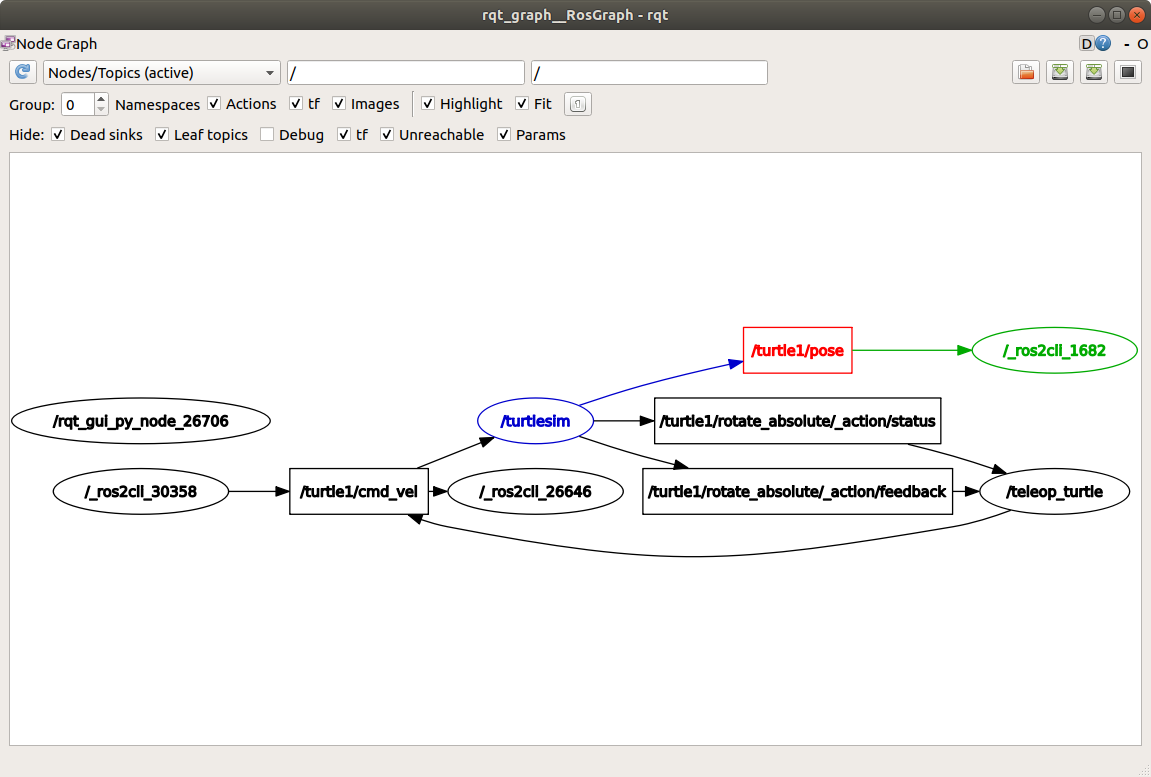
可以看到 /turtlesim 节点也在向 pose 话题发布数据,而新的 echo 节点已订阅了它。
在发布带有时间戳的消息时,pub 有两种方法可以用当前时间自动填充时间戳。对于包含 std_msgs/msg/Header 的消息,可以将 header 字段设置为 auto 来填充 stamp 字段。
$ ros2 topic pub /pose geometry_msgs/msg/PoseStamped '{header: "auto", pose: {position: {x: 1.0, y: 2.0, z: 3.0}}}'如果消息没有使用完整的 header,但有一个类型为 builtin_interfaces/msg/Time 的字段,可以将其设置为 now。
$ ros2 topic pub /reference sensor_msgs/msg/TimeReference '{header: "auto", time_ref: "now", source: "dumy"}'8 ros2 topic hz
Section titled “8 ros2 topic hz”你还可以使用以下命令查看数据发布的频率:
$ ros2 topic hz /turtle1/poseaverage rate: 59.354 min: 0.005s max: 0.027s std dev: 0.00284s window: 58返回的是 /turtlesim 节点向 pose 话题发布数据的频率。
回顾一下,之前你用 ros2 topic pub --rate 1 将 turtle1/cmd_vel 的发布频率设置为稳定的 1 Hz。如果用 turtle1/cmd_vel 而非 turtle1/pose 运行上述命令,会看到反映该频率的平均值。
注意:该频率反映的是
ros2 topic hz命令创建的订阅者上的接收频率,可能会受到平台资源和 QoS 配置的影响,不一定与发布者的频率完全匹配。
9 ros2 topic bw
Section titled “9 ros2 topic bw”可以使用以下命令查看话题使用的带宽:
$ ros2 topic bw /turtle1/poseSubscribed to [/turtle1/pose]1.51 KB/s from 62 messages Message size mean: 0.02 KB min: 0.02 KB max: 0.02 KB返回的是带宽使用情况以及发布到 /turtle1/pose 话题的消息数量。
注意:该带宽反映的是
ros2 topic bw命令创建的订阅者上的接收带宽,可能会受到平台资源和 QoS 配置的影响,不一定与发布者的带宽完全匹配。
10 ros2 topic find
Section titled “10 ros2 topic find”要列出给定类型的所有可用话题,请使用:
$ ros2 topic find <topic_type>回顾一下,cmd_vel 话题的类型是:
geometry_msgs/msg/Twist使用 find 命令可以根据给定的消息类型输出可用的话题:
$ ros2 topic find geometry_msgs/msg/Twist/turtle1/cmd_vel此时你会有很多节点在运行。不要忘记在每个终端中按 Ctrl+C 停止它们。
节点通过话题发布信息,任意数量的其他节点都可以订阅并获取该信息。在本教程中,你使用 rqt_graph 和命令行工具检查了多个节点之间通过话题建立的连接。现在你应该对数据在 ROS 2 系统中如何流动有了清晰的认识。
接下来,你将通过教程学习 ROS graph 中的另一种通信类型。